
Problem Description
Recently, while using ranger, I noticed that Konsole, the default terminal in the KDE Plasma desktop, had some issues rendering images. So, I started looking for an alternative terminal emulator. I had previously used Hyper, an Electron/web-based terminal emulator, but it had rendering issues with certain TUI applications (such as Neovim) and suffered from rendering latency when running on Arch Linux, so I gave it up. Currently, I am using the Kitty terminal emulator, which is relatively lightweight and convenient. However, I discovered that this emulator conflicts with the fcitx5 input method by default, making it very cumbersome to use the terminal in a Chinese environment. After some experimentation, I found a solution and documented it here for future reference.
Root Cause
Kitty's default input mode is not configured for fcitx5, so it does not support directly activating the input method for typing. Therefore, it is necessary to configure the environment variable to specify the input framework to be used.
Solutions
I tried using the export command to modify the
environment variable in the shell configuration script, but it had no
effect. I speculate that this is because the terminal emulator runs
before the shell environment takes effect, meaning the environment
variables in the shell configuration script do not apply to the terminal
emulator itself. Therefore, the correct approach is to launch Kitty with
the specified environment variable. Currently, I have found two
effective methods.
1. Effective Solution for KDE Desktop Environment
If you are using the KDE desktop environment, you can directly modify
how the application is launched (it might work on other desktop
environments as well, but I have only tested it under KDE). Type
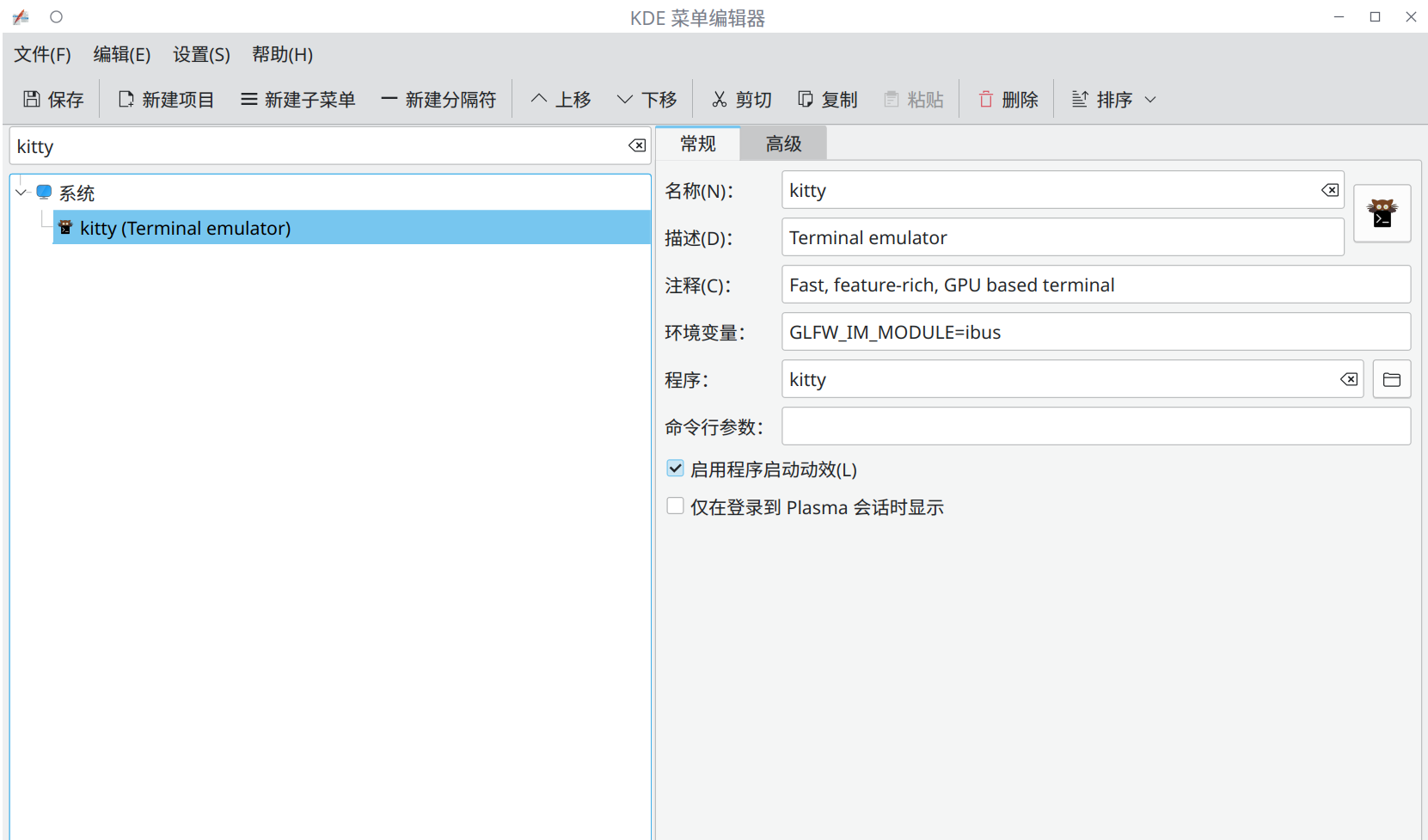
kmenuedit in the terminal to open KDE's menu editor
interface, select the Kitty application, and in the environment
variables field on the right, enter GLFW_IM_MODULE=ibus,
then save and exit. Now, after restarting Kitty, you will be able to
type in Chinese.
2. Launching Kitty as a Subprocess with Environment Variables in Terminal (Not Recommended)
This method is not recommended because launching it is rather cumbersome. After opening a terminal, you can use the following command to open another Kitty subprocess terminal, where the Chinese input method will work normally:
1 |
|
Of course, if you don't want to type a long command every time to
launch the terminal, you can insert the above command into your shell
configuration file (.bashrc or .zshrc, etc.).
This way, after launching Kitty, it will automatically open a subprocess
that supports Chinese input. However, having an extra window frame on
the desktop is always a bit annoying, so consider this an alternative
workaround.
There might be better solutions out there...
References
The solution provided in this article refers to GitHub issue #469. Feel free to contribute or suggest improvements.