问题描述
最近使用ranger的时候发现KDE-plasma桌面自带的konsole在图片渲染有点问题,于是寻找替代的终端模拟器。原先使用过Hyper,一个基于web的终端模拟器,然而该模拟器针对某些中断应用的渲染有点问题(例如Neovim),在ArchLinux运行时出现渲染延迟的问题,故放弃。现使用Kitty终端模拟器,相对较轻和方便,然而使用时发现该模拟器默认与fcitx5输入法有冲突,这导致在中文环境中使用终端非常麻烦。经过尝试,解决后留档以记录方法。
问题原因
kitty默认输入模式没有设置为fcitx5,所以不支持直接激活输入法输入。所以需要在环境变量中设置,指定使用的输入框架。
解决方法
笔者尝试在终端环境中使用export方法,在终端配置脚本中修改环境变量,但是没有效果。笔者推测其原因是终端模拟器是在终端环境生效前先被运行,终端配置脚本中的环境变量对于终端模拟器没有生效。所以正确的解决方法应该是以指定环境变量的方法来启动kitty,目前笔者使用后有两种有效方法。
1.KDE桌面环境下的有效解决方案
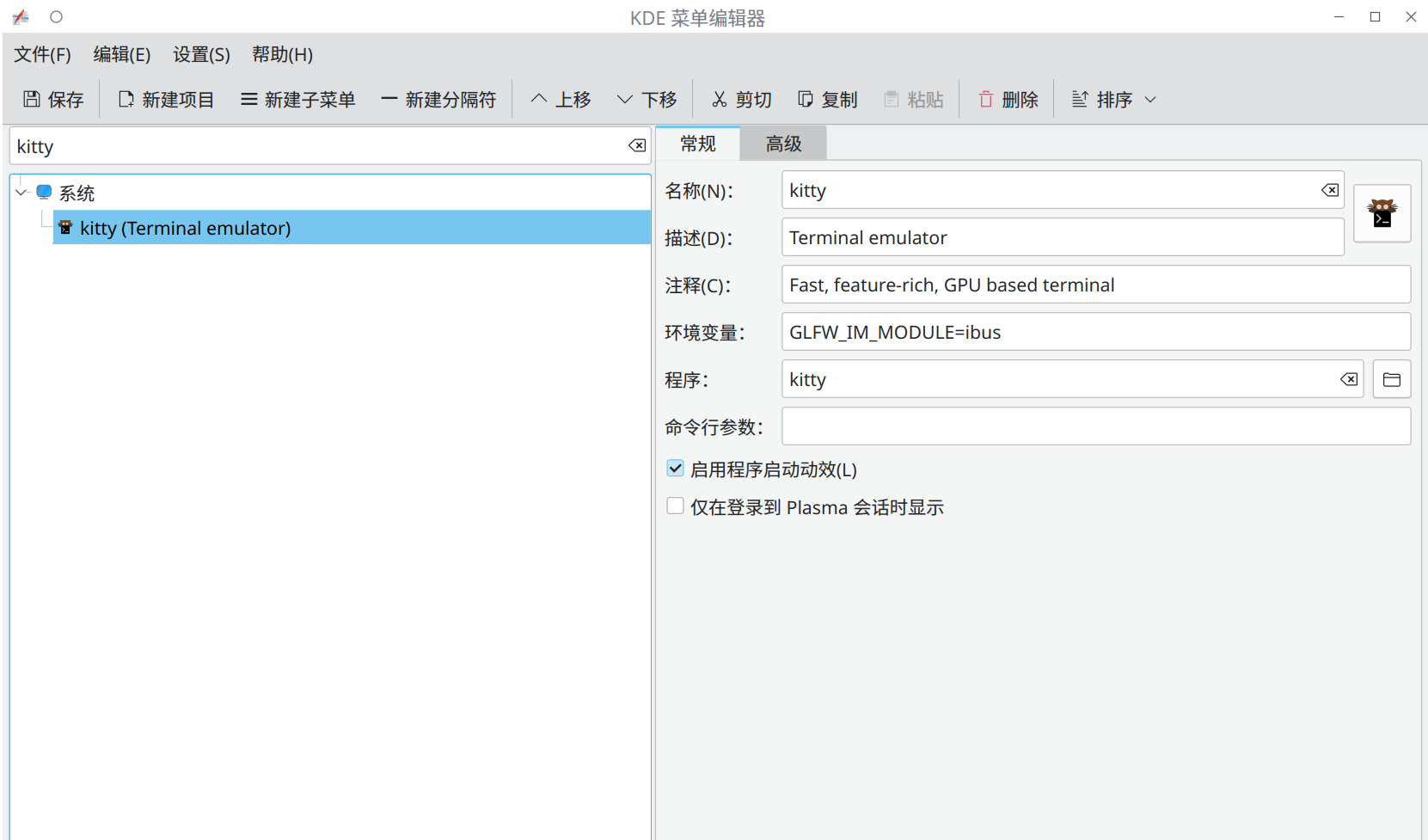
如果使用KDE桌面环境,那么可以直接修改对程序的启动方式(其它桌面环境也许可以,但笔者这里只在KDE环境下测试了)。在终端中输入kmenuedit直接进入KDE的菜单编辑界面,选择kitty程序,在右侧修改其环境变量栏,输入GLFW_IM_MODULE=ibus,保存退出。此时你的重新运行后就可以输入中文了。
2.终端环境下使用环境变量启动kitty子进程方法(不推荐)
该方法不推荐的原因是启动会比较麻烦。在开启一个终端后,你可以使用以下语句再开启一个kitty的子程序终端,在子程序终端中可以正常使用中文输入法:
1 | |
当然,如果你不想每次输入一长串命令来启动终端,你可以直接在你的终端配置文件(.bashrc或.zshrc等)中插入上面的指令,这样你启动kitty程序后会自动打开可以输入中文的子程序。但桌面上多一个程序框总是不太舒服,因此这算是个备选方案。
或许会有更好的解决方案...
参考文档
本文给出的解决方案参考github上的issue #469,欢迎补充。
Problem Description
Recently, while using ranger, I noticed that the konsole terminal emulator bundled with KDE-plasma desktop had some issues with image rendering, so I looked for an alternative. I previously used Hyper, a web-based terminal emulator, but it had rendering issues with certain interactive applications (e.g., Neovim), and experienced rendering lag when running on ArchLinux, so I abandoned it. I am now using the Kitty terminal emulator, which is relatively lightweight and convenient. However, I found that it conflicts with the fcitx5 input method by default, which makes using the terminal in a Chinese environment very troublesome. After some attempts, I've documented the solution here.
Problem Cause
Kitty's default input mode is not set to fcitx5, so it doesn't directly support activating the input method. Therefore, it needs to be configured in the environment variables to specify the input framework to be used.
Solution
I tried using the export method in the terminal
environment, modifying environment variables in terminal configuration
scripts, but it had no effect. I speculate that the reason is that the
terminal emulator is launched before the terminal environment takes
effect, so the environment variables in the terminal configuration
scripts are not applied to the terminal emulator. Therefore, the correct
solution should be to launch Kitty with specified environment variables.
Currently, I have found two effective methods.
1. Effective Solution for KDE Desktop Environment
If you are using the KDE desktop environment, you can directly modify
the program's launch method (other desktop environments might also work,
but I've only tested it on KDE). Type kmenuedit in the
terminal to directly enter KDE's menu editing interface, select the
Kitty program, modify its environment variables field on the right,
enter GLFW_IM_MODULE=ibus, then save and exit. At this
point, you should be able to input Chinese after restarting Kitty.
2. Launching Kitty Child Process with Environment Variables in Terminal (Not Recommended)
This method is not recommended because launching it can be cumbersome. After opening a terminal, you can use the following command to open a Kitty child process terminal, where you can use the Chinese input method normally:
1 |
|
Of course, if you don't want to type a long command every time to launch the terminal, you can directly insert the above command into your terminal configuration file (.bashrc or .zshrc, etc.), so that when you launch the Kitty program, it will automatically open a child process that supports Chinese input. However, having an extra program window on the desktop is generally not ideal, so this is considered an alternative solution.
Perhaps there are better solutions...
References
The solution provided in this article refers to issue #469 on GitHub. Contributions are welcome.